Connect Families Organize Life



Works with third-party calendars so every schedule stays perfectly in sync.


Works with third-party calendars so every schedule stays perfectly in sync.
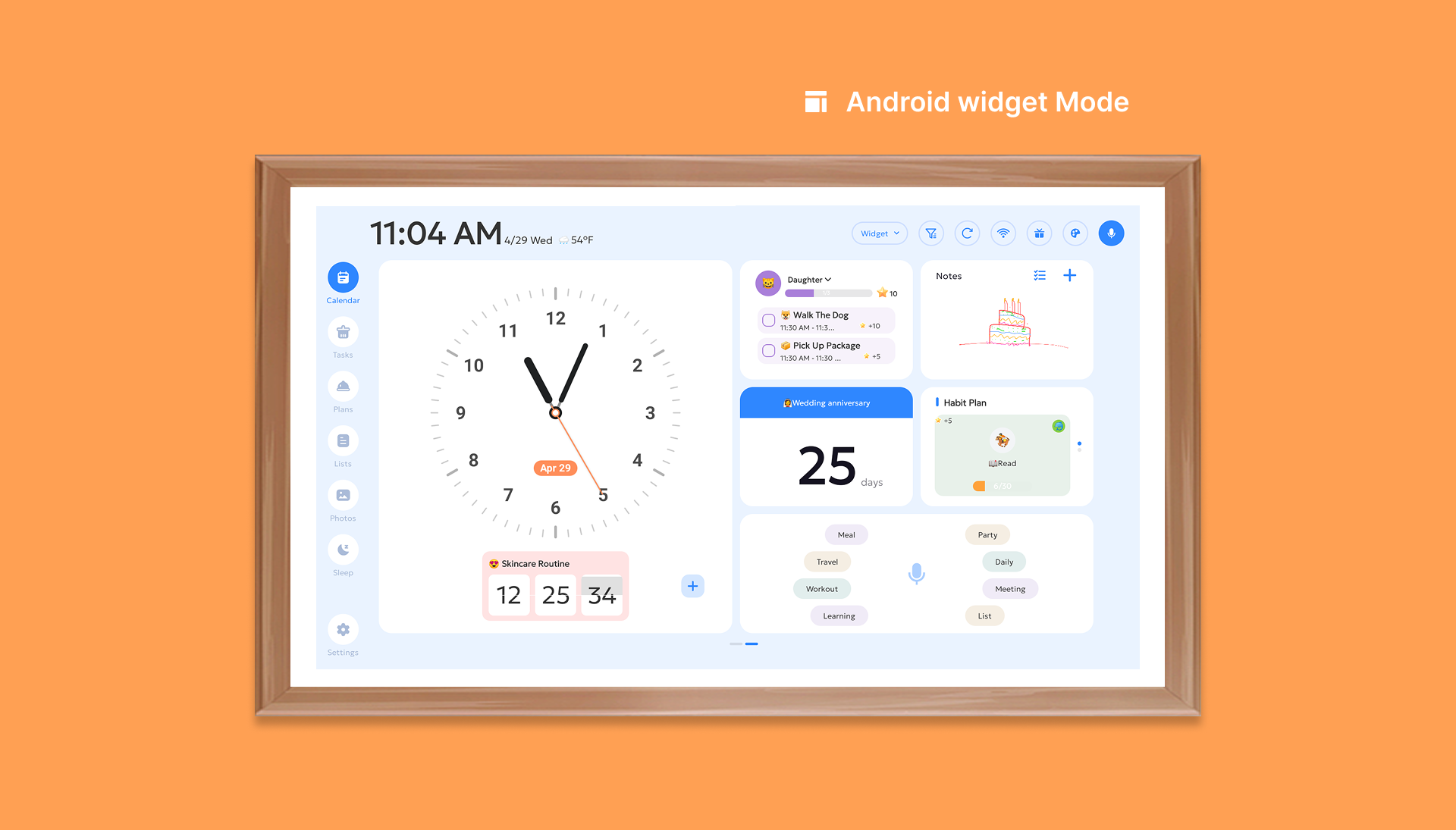
Whether you need a quick glance or a detailed view, FotoCube adapts to your needs. Switch manually or let it auto-toggle based on proximity.
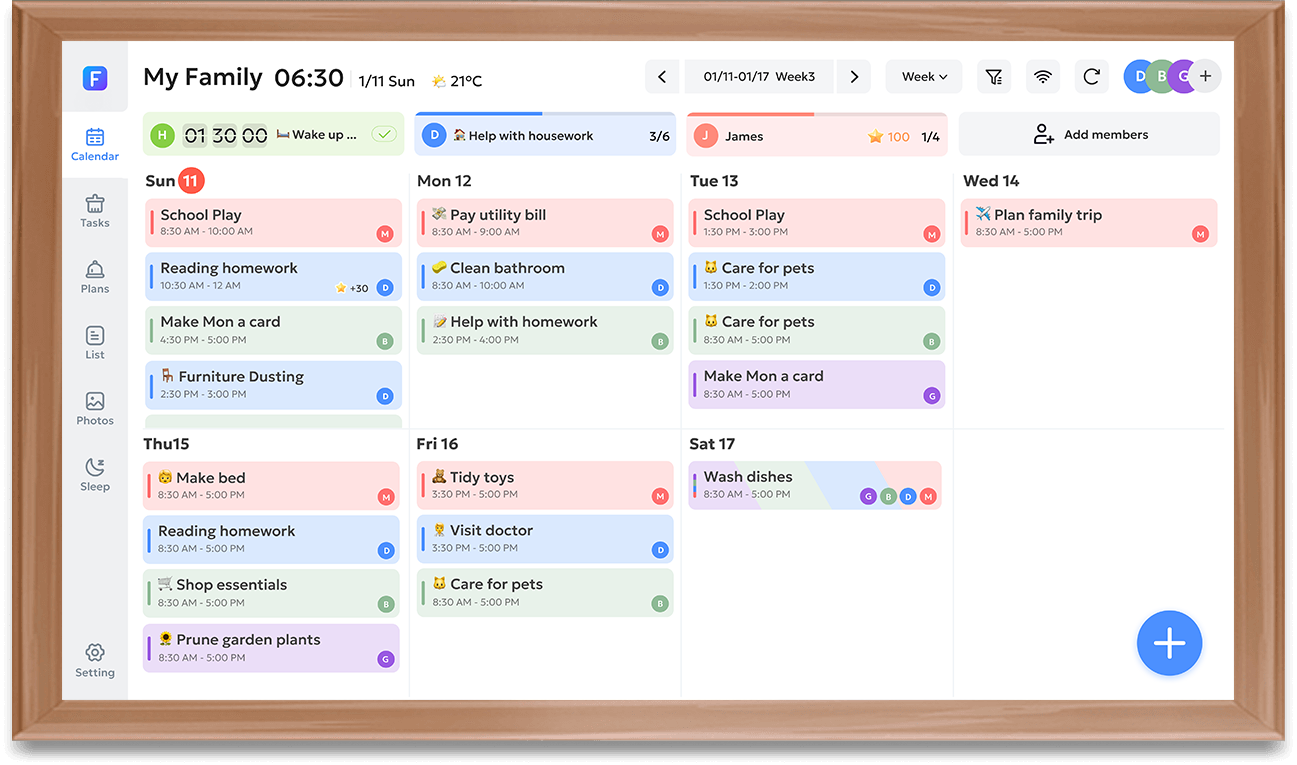
Keep schedules in sync and see your day at a glance with a clear calendar layout.
No matter you need a stylish photo frame to highlight your family, FotoCube always is your smart choice, allowing you to easily go live and present life perfectly.
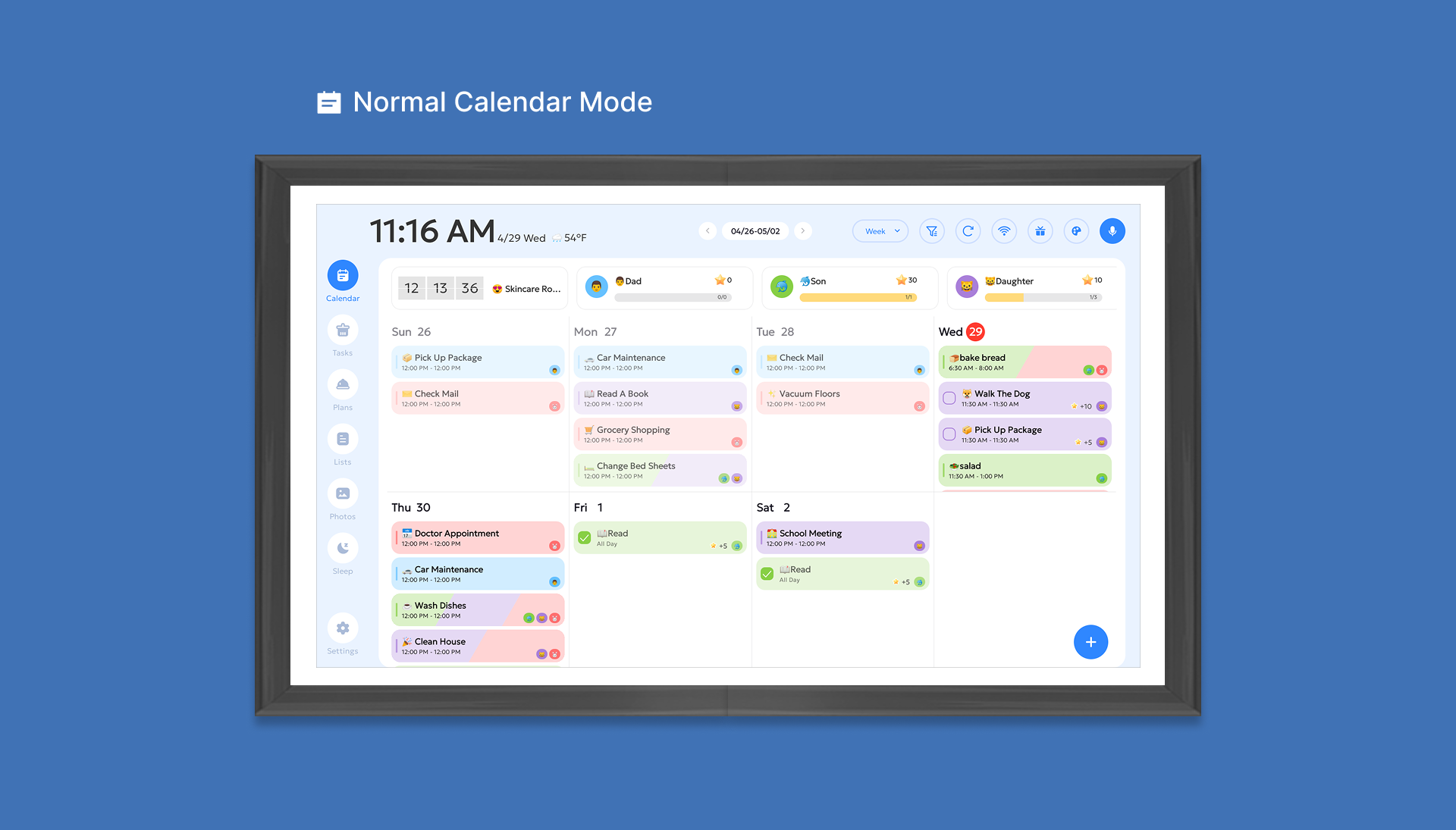

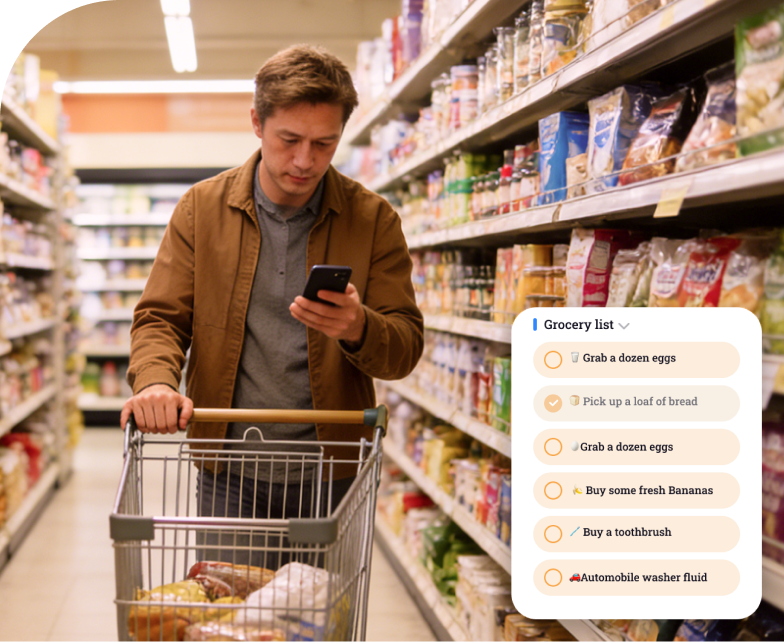
Grocery, shopping, or wish lists — create and color code them from the Calendar.
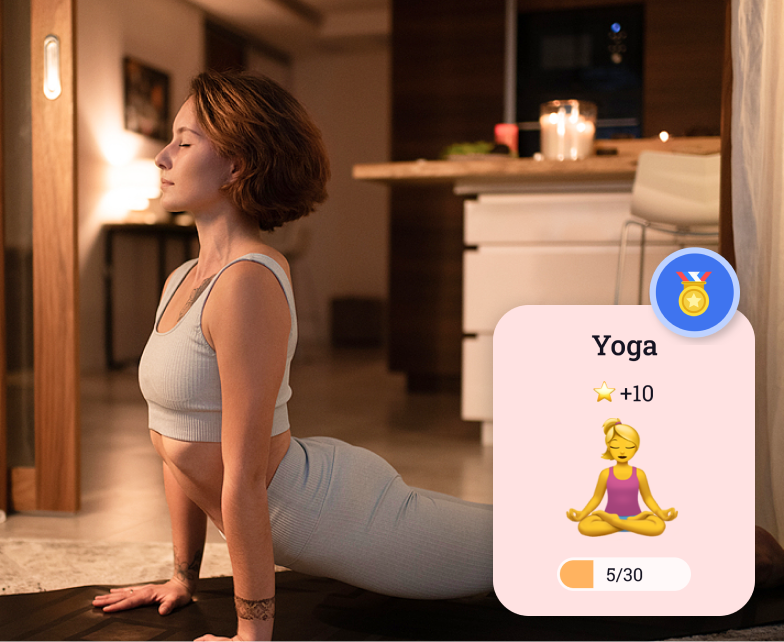
Whether you need a quick glance or a detailed view, FotoCube adapts to your needs.

Grocery, shopping, or wish lists — create and color code them from the Calendar.
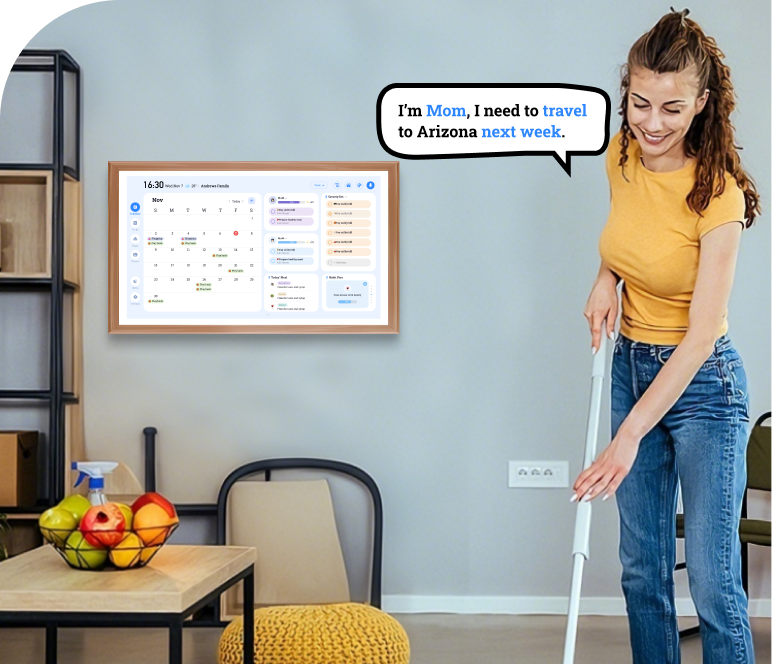
Quickly add events, set reminders, and manage your calendar hands-free with simple voice commands.
Restore old or damaged photos automatically with AI-powered enhancement and colorization.

Reduce eye strain and match your calendar to your style or mood.
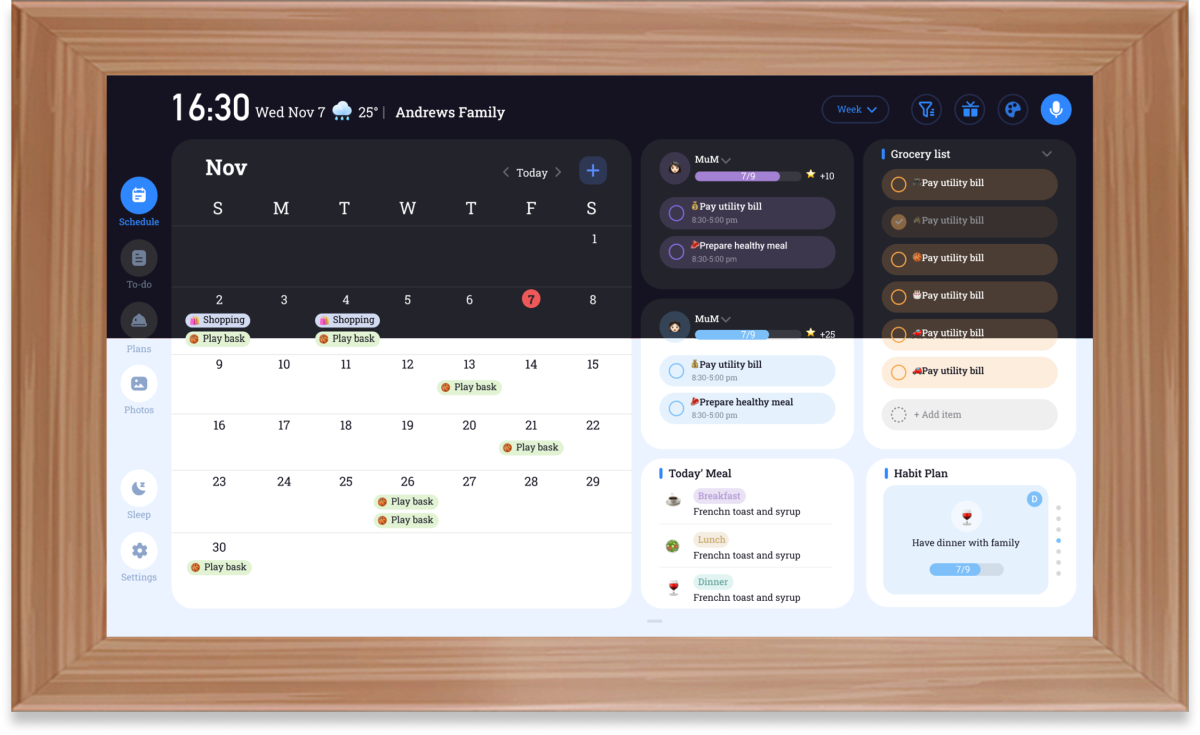
FotoCube Pro version integrates ZolaHomeOS, with powerful desktop management, themes, AI and IoT.
FotoCube Calendar version focuses on scheduling with high cost‑performance and ease of use.
FotoCube Frame version is a photo frame with basic calendar sync and editing for daily use.
* Due to hardware differences, the three products do not support cross-upgrades.
| Function | FotoCube Frame (Basic version) |
FotoCube Calendar (Advanced Version) |
FotoCube Pro (Pro version) |
|---|---|---|---|
| Photo Sending |  | | |
| Masterpieces of Art | | | |
| Send Blessings | | | |
| AI Photo Restoration | | | |
| 15-Second Voice Notes |  | | |
| Shopping List | | | |
| Habit Plan | | | |
| Cooking Plan | | | |
| Star Points Gift Redemption | | | |
| AI Video Generation | | | |
| Magic Import (AI Voice) | | | |
| Memo (Doodle + Message Board) | | | |
| Night Mode | | | |
| Desktop Theme | | | |
Whether you need a quick glance or a detailed view, FotoCube adapts to your needs. Switch manually or let it auto-toggle based on proximity.
Featuring end-to-end encryption and adherence to international security standards, your photos and calendars are protected by robust, industry-leading safeguards. Focus on the people and moments that matter, with total confidence.




Everything you need to know about the FotoCube.