Connect Families Organize Life

Works with third-party calendars so every schedule stays perfectly in sync.

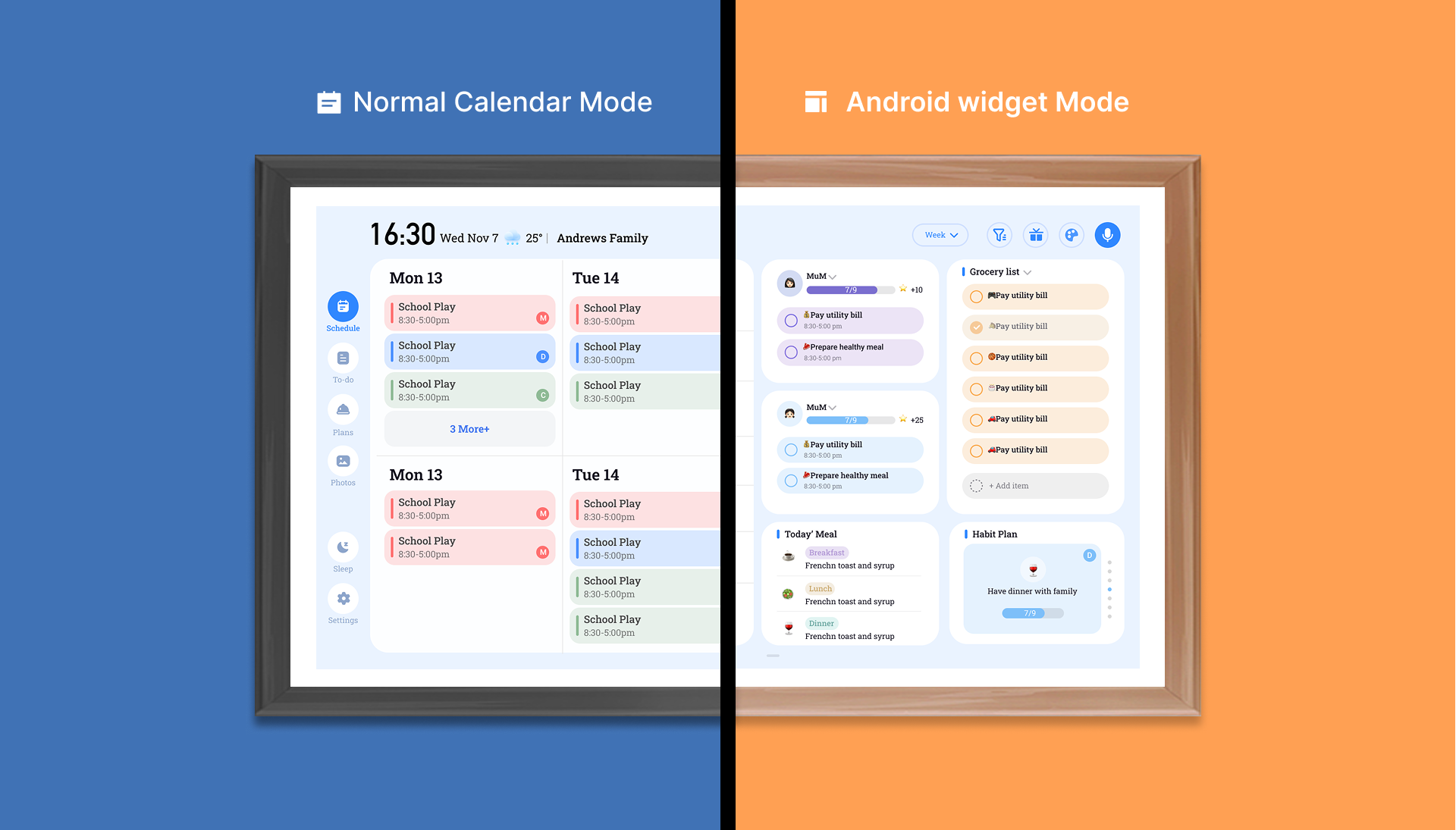
3 Modes Switch Freely

Whether you need a quick glance or a detailed view, FotoCube adapts to your needs. Switch manually or let it auto-toggle based on proximity.
3 Modes

Smart Display Modes

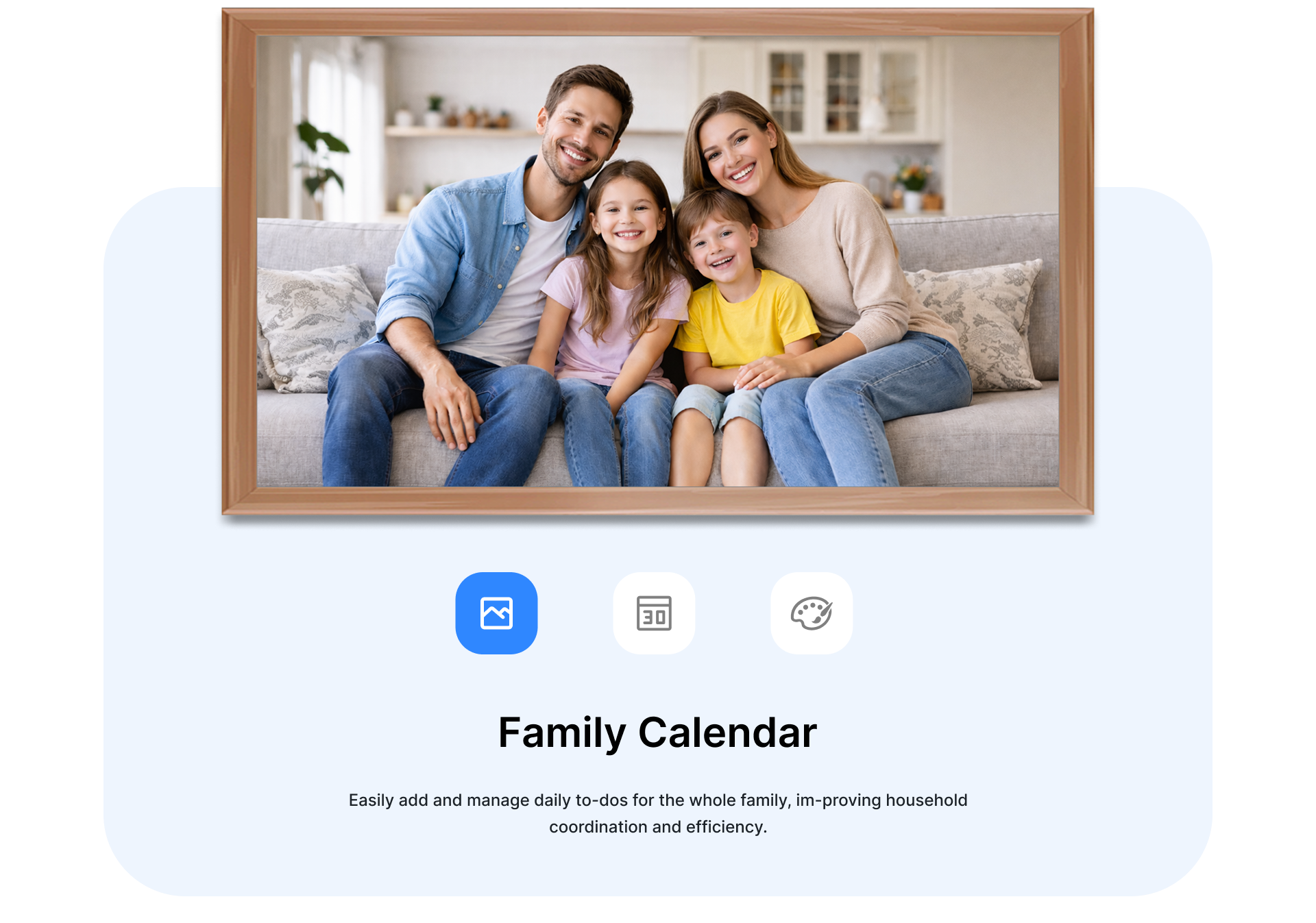
No matter you need a stylish photo frame to highlight your family, FotoCube always is your smart choice, allowing you to easily go live and present life perfectly.
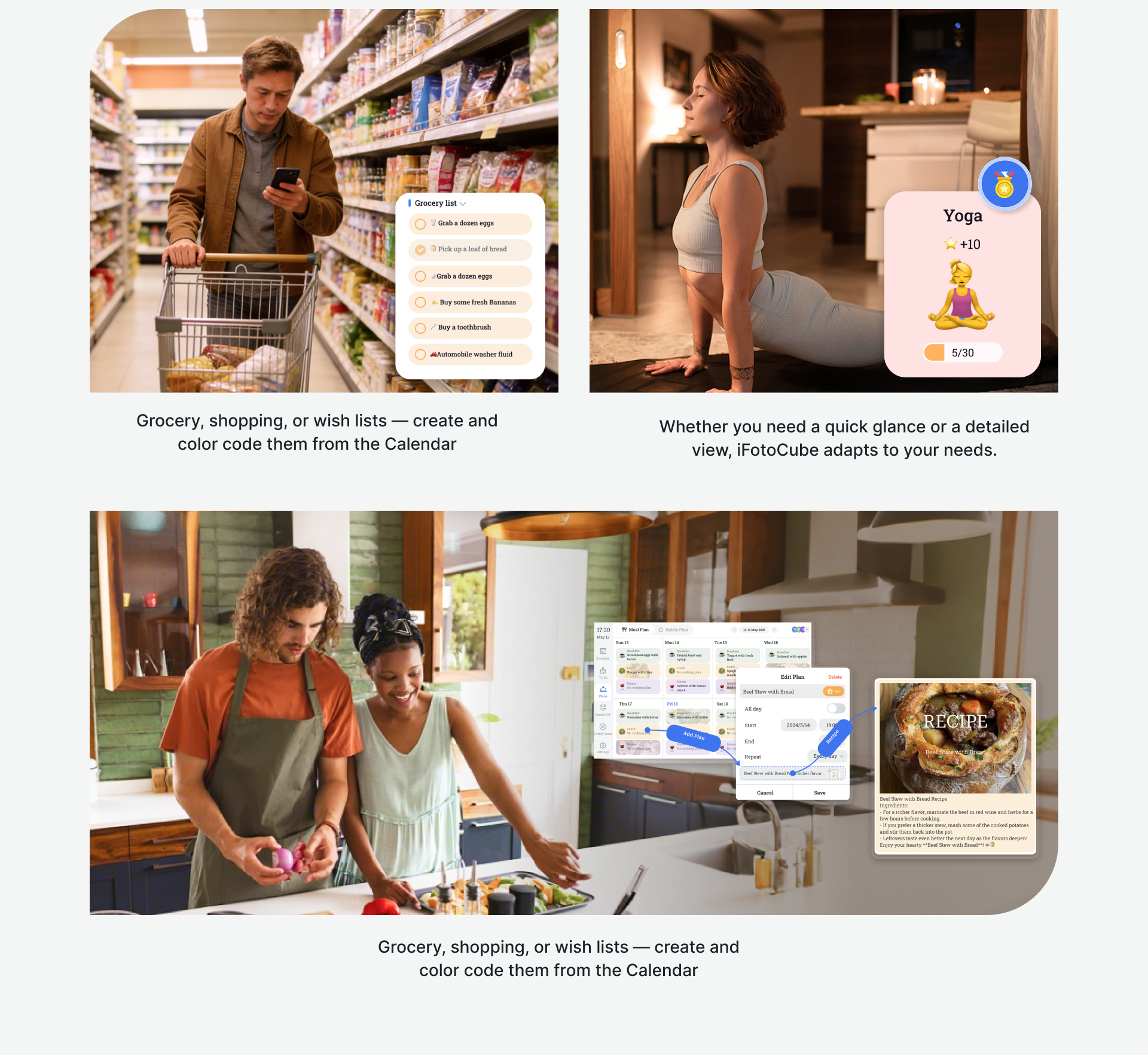
Smart Display Modes

One tap for events

One Tap
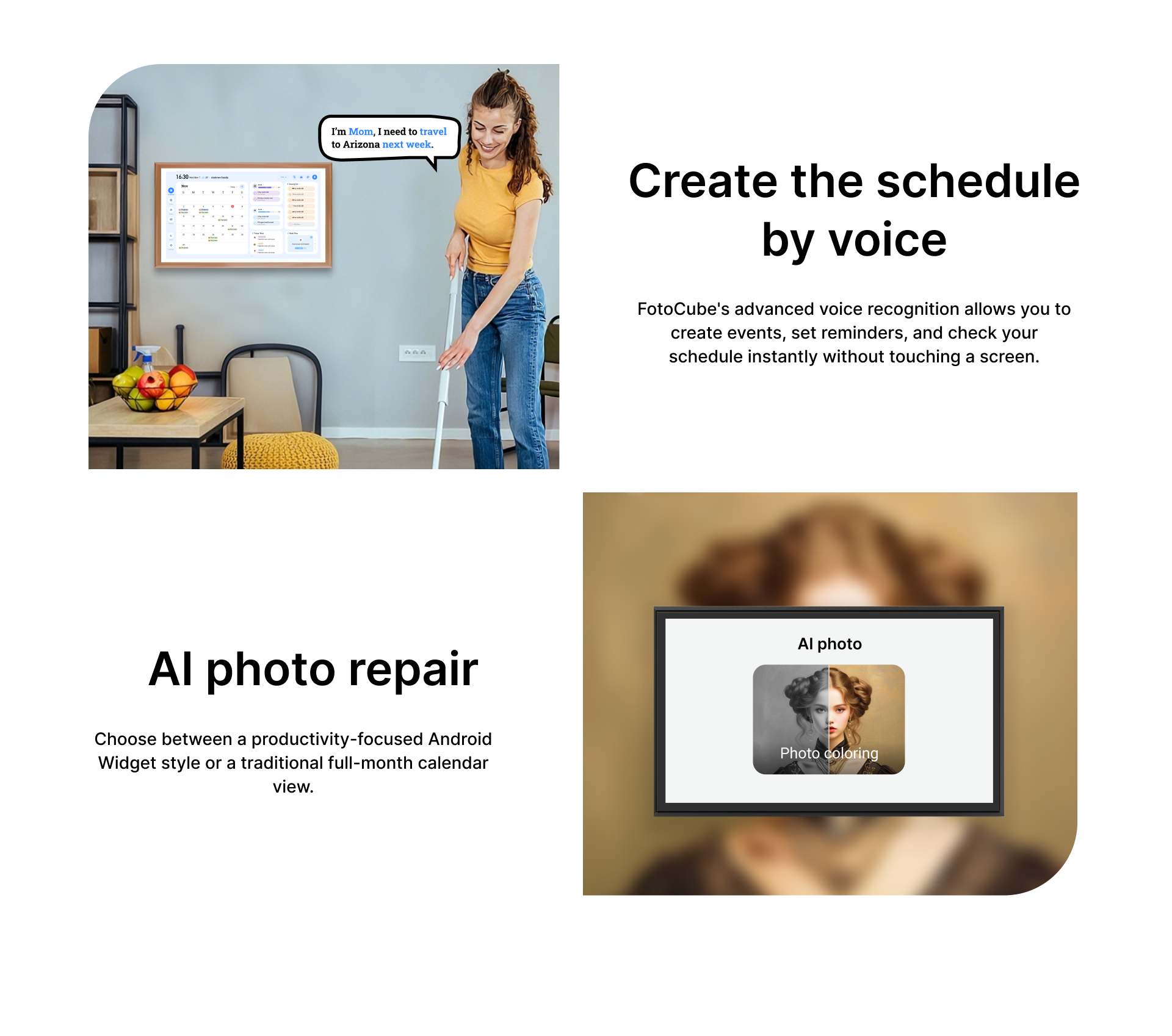
Voice Section
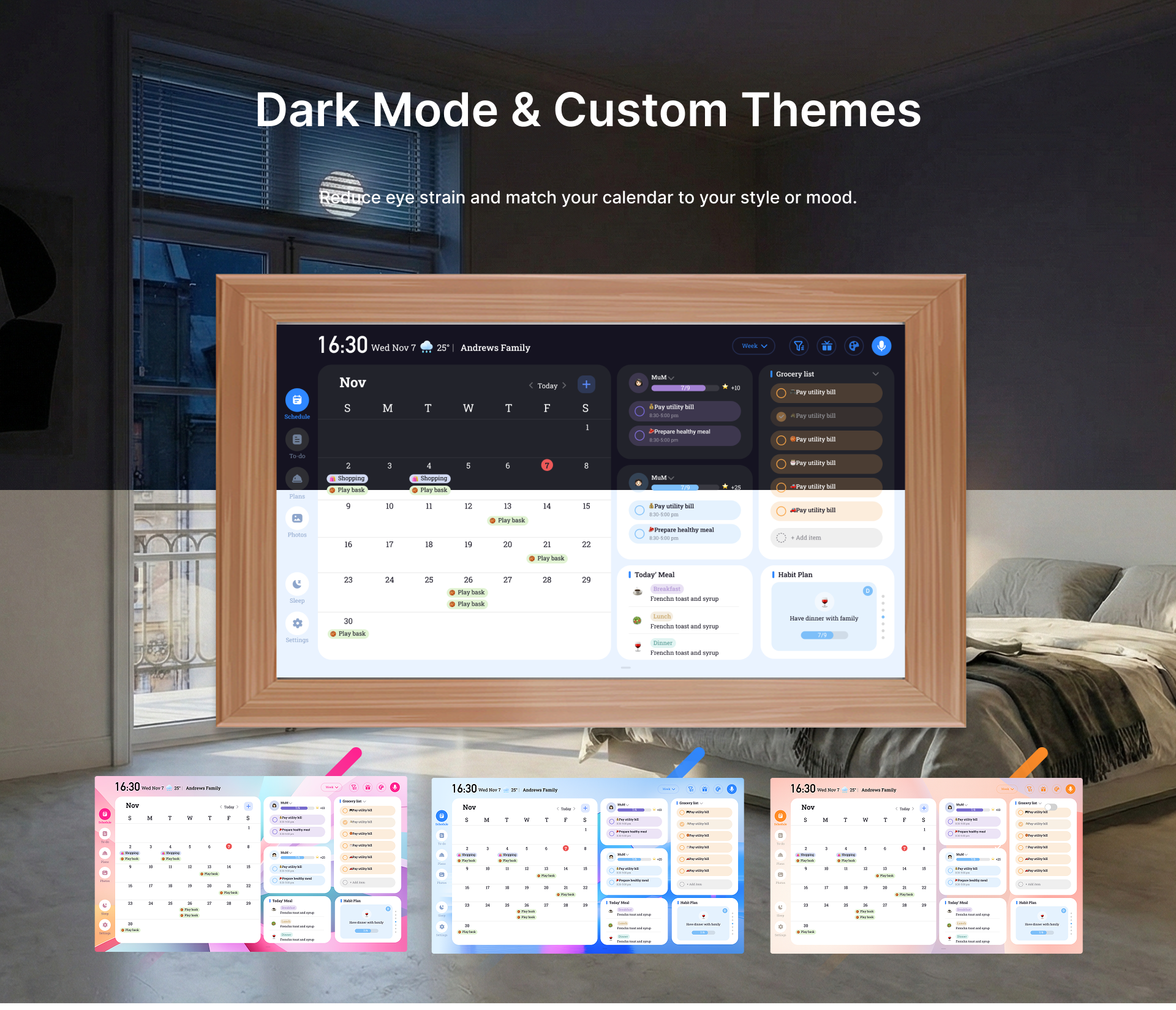
Dark Mode

More theme color options to satisfy your daily mood

Version Comparison

Frequently Asked Questions

Everything you need to know about the FotoCube.
How to bind the photo frame? ×
There are two binding methods; you can choose either one: Open the FotoCube App, complete registration and log in to your account. Tap the "Add New Photo Frame" button in the upper left corner, then scan the QR code on the photo frame or manually enter the pairing code to complete the addition and binding; Open the photo frame settings page, find the account settings option, and enter the 8-digit pairing code displayed on this page in the App to complete device binding.
How to sync with Google Calendar? +
Please follow these steps: Open the FotoCube App and tap the "Calendar" tab at the bottom; Tap the "Import" button in the upper right corner; Select "Google Calendar" as the sync source; Log in to your Google account and authorize the App to complete the sync operation; Select the sync mode: One-way Sync or Two-way Sync; Check the calendar categories you need to sync and complete the settings.
Why does the "Network Busy" prompt appear? +
It is recommended to troubleshoot as follows: Check if the device's network connection is normal and confirm that the network status display is normal; If the network connection is abnormal, you can try switching to a mobile phone hotspot and retry.
Why can't the calendar be imported? +
Please first check the import event type of your current third-party calendar, share the calendar according to the corresponding type, then copy the ics link of the calendar, and import it through the link to complete event synchronization.
Why are a lot of duplicate events imported? +
The App supports multiple calendar sync methods. If you use multiple sync methods at the same time (e.g., enabling Two-way Sync, importing sync via ics link, and adding local calendar import sync), duplicate events are likely to occur. It is recommended to select only one method when syncing the calendar to avoid duplicate events.