
How FotoCube Connects Google and iCloud Calendars
Google and iCloud calendars use different connection steps in the current FotoCube app guide. Knowing which screen to expect helps you recognize the permissions you are giving and avoid entering your regular Apple Account password in the wrong place.
Choose the right connection method
In the FotoCube app, open Calendar, tap Import and select your provider. The illustrated calendar connection guide covers Google, iCloud, Outlook and calendar-link subscriptions. The sign-in method and available sync modes depend on the provider.
Google: sign in and grant access
For Google Calendar, the current guide shows a Google sign-in and permission step. After granting access, choose the calendars to show and the sync mode offered in the app. Review the account and permissions on the Google screen before continuing. Check that a test event appears after the first synchronization.
Google lets you review and remove a linked app's access from your Google Account. Revoking access can stop that calendar connection; it does not by itself tell you whether previously shared data has been deleted. Use FotoCube's privacy contact for data-retention questions.
iCloud: use an app-specific password
The current iCloud setup asks for your Apple Account email and an app-specific password generated in your Apple Account. It is different from your regular Apple Account password. The iCloud screen shown below is from FotoCube's existing setup guide.
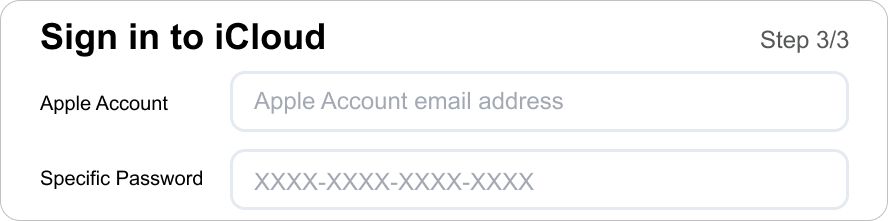
Apple explains how to create or revoke an app-specific password. If the app changes to Apple's newer authorization flow in a future version, follow the prompts shown in that version rather than assuming this password step still applies.
Apple says revoking an app-specific password signs out the app using it. If you remove this connection, expect to reconnect with a new password if you want iCloud calendar sync again.
Check the sync mode and the data you share
Where available, choose one-way or two-way synchronization and select only the calendars you need. A shared ICS link is a different kind of connection: it imports the source calendar and should not be assumed to write edits back to that service. Refresh timing also varies by provider and connection method.
These setup screens explain how to connect a calendar. They do not, by themselves, establish how long credentials or calendar data are retained. For account-data questions, read the FotoCube Privacy Policy or contact support for a current answer.
A quick account-safety checklist
- Check the provider and account name before granting access.
- Use the Apple app-specific password requested by the current iCloud flow, never your regular Apple Account password in that field.
- Review connected calendars and sync mode in the FotoCube app after setup.
- Remove access through the provider's account settings when you no longer use the connection.
Ready to try FotoCube?
Download the app and explore the display that keeps your family in step.