
Frame or Calendar: Where Should Family Photos Live?
Imagine receiving a new family photo on Friday afternoon. Do you want it to fill a display in the living room, or do you want the display to keep tomorrow's pickup schedule in view? Both FotoCube Frame and FotoCube Calendar can show photos. The difference is what you need the screen to do the rest of the day.

Choose the job you want the display to do
| What matters at home | FotoCube Frame | Calendar or Calendar Pro |
|---|---|---|
| Main purpose | Photos, videos, albums and slideshows | Shared schedules, tasks, meals and photos |
| Sending from a phone | Send through supported sharing in the FotoCube app | Use the FotoCube app to send to a connected display and album |
| Family planning on screen | Frame is the photo-focused product | Calendar views, tasks, rewards and meal planning |
| Paid cloud features | Cloud photo backup and remote cloud album management are separate Zola AI plan features | |
If relatives mainly want to contribute photos and see them displayed, start with Frame. Its product page lists invited family sharing, albums, slideshow and video support. If someone needs to check the school week, complete a task or look up dinner on that same screen, start with Calendar. Calendar Pro keeps that planning foundation and adds its listed Pro features.
What happens when you send a photo?
On a supported Calendar or Calendar Pro display, the illustrated sending guide shows the FotoCube app flow: select photos or videos, choose a connected device and album, add a description if you want one, then send. Sending History shows transfer status and lets you retry a failed item. The guide also shows how to create a new album. You can open the original app workflow screenshot at full size.
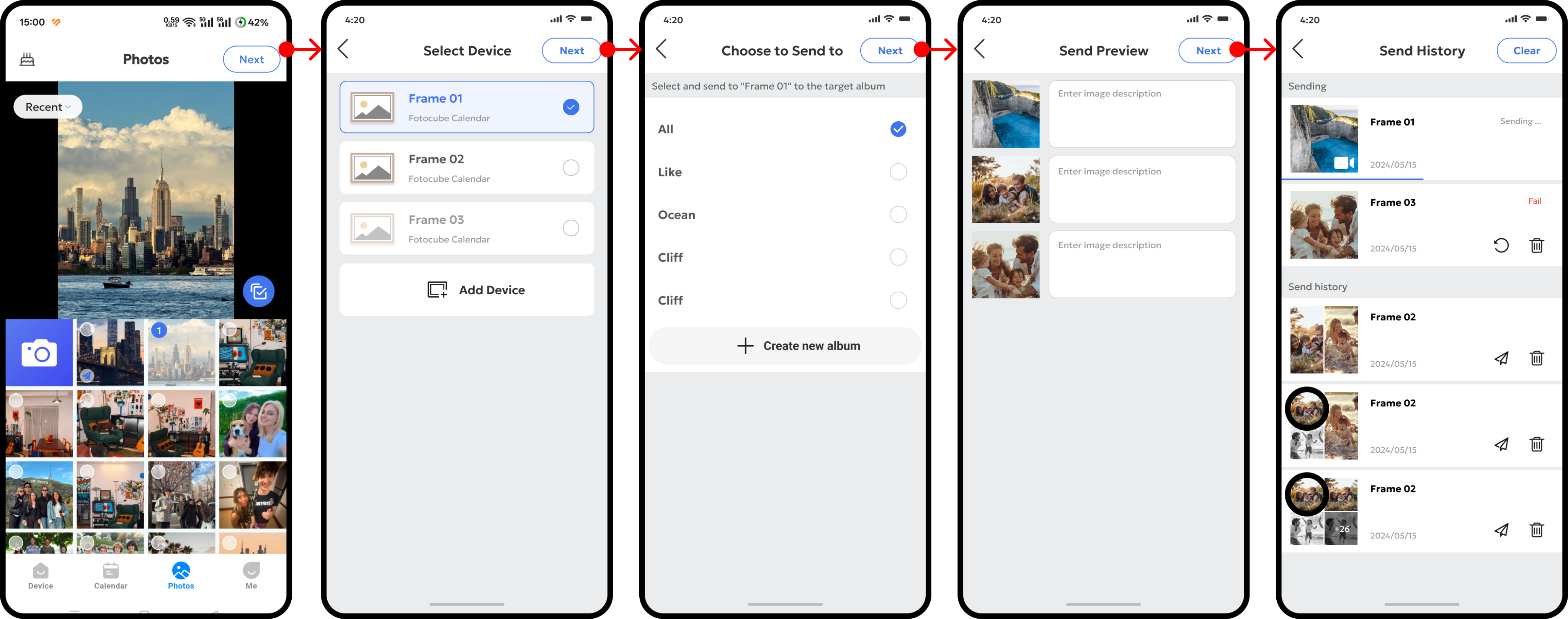
Frame's product page confirms app-based sending and sharing with invited people. The detailed guide above was written for Calendar and Calendar Pro, so check the menu labels on the Frame and app version you use.
Sending photos and backing them up are different
Frame's product FAQ says you can send and display photos without a subscription. Calendar's core photo features also do not require a Zola AI subscription. Paid plans cover separate tools such as cloud photo backup, remote cloud album management and higher AI photo creation allowances. Check the current Zola AI plan table before choosing a paid plan.
A quick check before you choose
- Mostly pictures and videos? Look at Frame and confirm its current availability through the product page.
- Schedules, tasks and photos together? Compare Calendar and Calendar Pro; the edition guide explains their differences.
- Sending to relatives? Check who will have app access and which device they can send to. Frame supports invited contributors through the app.
- Need cloud storage? Review the paid plan terms separately from the display purchase.
For a step-by-step view of photo sending on supported Calendar displays, use the help guide with the original app screenshots.
Find the right display for your family
Compare the photo-focused Frame with the family-planning Calendar.