 Help Center
Send photos and videos from your phone
Select photos or videos in the FotoCube app, choose the device album and send them to your display.
- The FotoCube app connected to your display
- Access to the photos or videos you want to share
- An internet connection for the phone and display
For supported Calendar and Calendar Pro displays. Menu labels and feature availability can vary by device and software version. Check the options shown on your device.
Step by step
- Select one or more photos or videos in the FotoCube app.
- Choose the target device album. Create a new album if you want to keep these items together.
- Add a photo description if needed, then tap Send.
- Open sending history to check the transfer status or resend an item.
- On the display, choose the album you want to play.
Illustrated reference
Original FotoCube instructions and screenshots for this task.
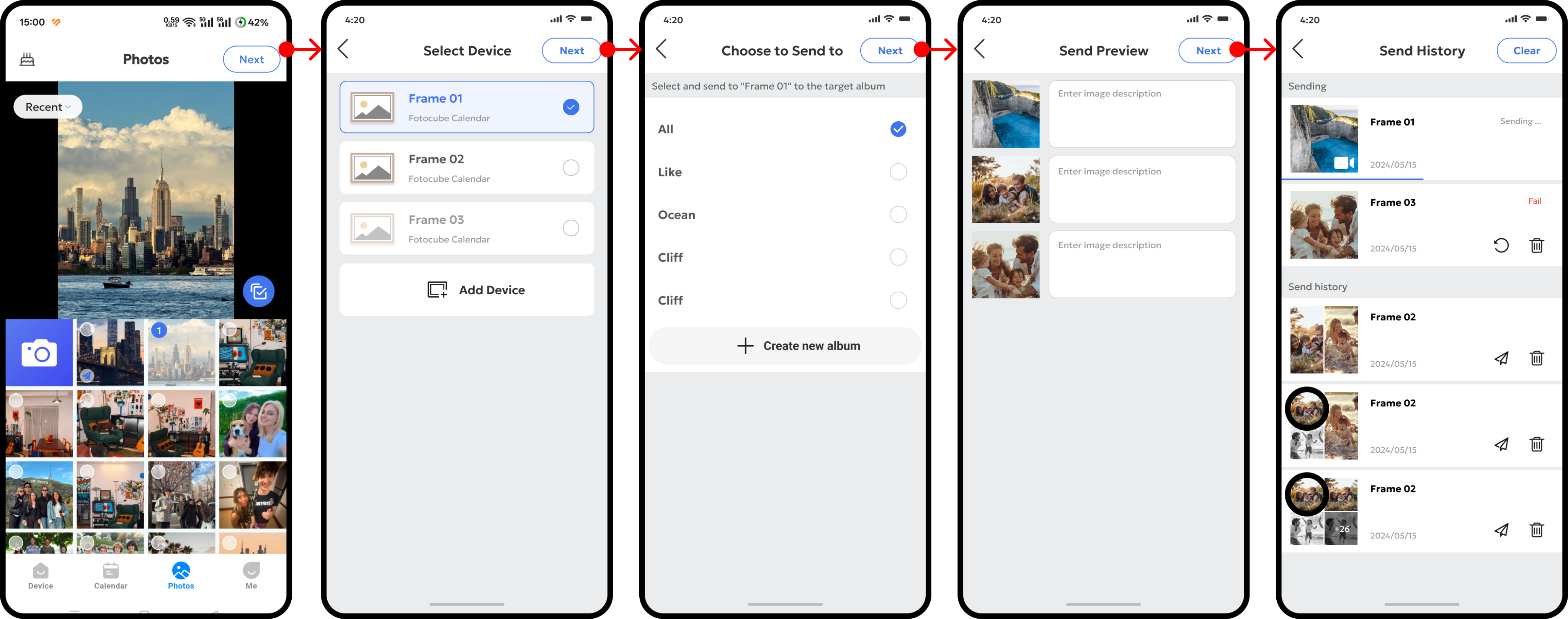
Send Photos/Videos
(1) Select one or more photos; (2) Select the target device album; (3) Add a photo description; (4) Tap "Send".
Create a New Album
You can create a new album and send photo or video content to the specified album. On the smart display, you can set the Smart Display to play photos and videos of the specified album.
Sending History
You can view the status of the photo sending task and resend photos/videos or delete sending records in the sending history list.
Common questions
Can I send items to a new album?
Yes. Create an album and choose it as the destination for the photos or videos.
Where can I retry a transfer?
Use sending history to view transfer status and resend photos or videos. Deleting a sending record is separate from deleting an album.
Does this require the paid cloud-photo service?
This guide covers app-to-display sending. Cloud backup and remote cloud album management are separate Zola AI plan features.
Based on the existing FotoCube Help Center guide: Send Photos or Videos. This documentation date is not a device or app release date.