
How to Check Calendar Sync Before Relying on It
You add an appointment to your phone and expect it to appear on the family display. Whether it shows up immediately depends on the calendar provider, the type of connection and the first-sync state. Before relying on a display for a busy day, test the connection you actually use.
What affects refresh timing?
FotoCube supports account connections for providers such as Google, iCloud and Outlook, plus shared calendar links for services such as Cozi and TeamSnap. A calendar-link subscription is an import: edits made in FotoCube should not be assumed to update the original service. Refresh intervals can differ from account connections. The calendar connection guide explains each route.
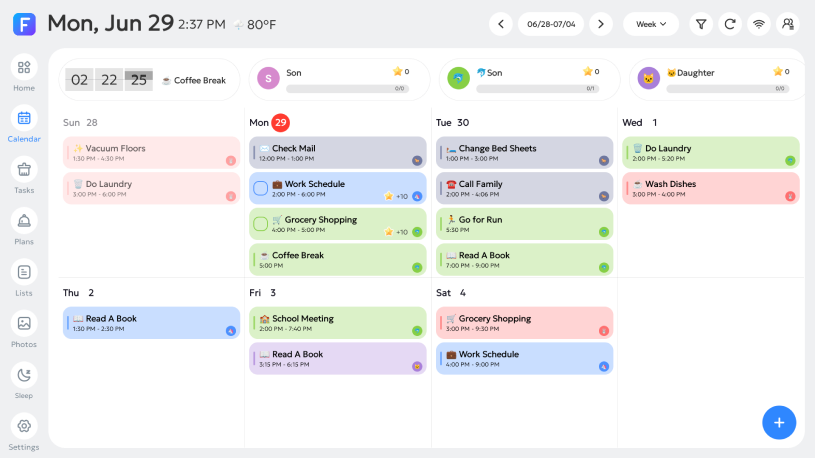
Compare connection methods
- Google Calendar: Sign in to your Google Account, grant access and choose the calendars to display.
- iCloud Calendar: The current setup uses your Apple Account email and an app-specific password. Choose an available sync mode in the app.
- Outlook Calendar: Sign in to your Microsoft account and select the Outlook calendars you want to use.
- Cozi or TeamSnap: Paste a shared ICS URL. Treat this as a calendar subscription rather than assuming edits will write back.
These are the paths shown in the current FotoCube connection guide. Provider screens and options can change, so follow the prompts in your app version.
Test the setup you plan to use
- Connect one calendar and wait for the first import to finish. The first synchronization may take a few minutes.
- Create a clearly named test event in the original calendar. Check when it appears in the FotoCube app and on the display.
- Edit the same event in the source calendar and confirm that the change appears. If you selected a supported two-way mode, test an edit in the other direction too.
- Repeat with any ICS link your family relies on. Treat it as a subscription unless the provider explicitly supports writing changes back.
Record the behavior you see with your own provider, network and device. A result from one test is useful for setup, not a guaranteed refresh time for every connection.
If the test event is missing, first confirm that you chose the right provider account and calendar. Then check the event's date and time zone in the source, the sync mode selected in FotoCube and whether the first import has finished. Repeat the test before relying on that connection for pickups or appointments.
Questions to ask before buying
- Does the display support the calendar services your household already uses?
- Which connections offer one-way or two-way updates?
- Will a shared calendar link refresh often enough for the way your family plans?
- Can everyone read the updated event clearly on the screen?
Use the current provider guidance
FotoCube's Calendar product page and setup guide both note that connection methods and refresh timing vary by service. Use those instructions and your own test event to decide whether the setup meets your needs. Check expected update timing for the specific provider and connection you use.
Ready to try FotoCube?
Download the app and explore the display that keeps your family in step.