
Which Family Calendar Works Best for Kids’ Routines?
At 7:25, one child still needs to put a water bottle in their backpack. The other has fed the dog but hasn’t checked it off. A wall calendar can show when school starts. The software earns its place when each child can find the next job, check it off, and leave tomorrow’s plan intact.
For moms and other caregivers comparing family calendar displays, look at three things together: how recurring routines show up, whether star rewards need a subscription, and which changes a PIN can protect. FotoCube Calendar and Calendar Pro include routines and rewards on supported devices. Skylight includes its basic chore and routine tools, with rewards in Calendar Plus. Cozyla also has a dedicated task workflow, with lock controls and membership details that vary by model.
FotoCube vs. Skylight vs. Cozyla for kids’ tasks
Scroll the table sideways on a small screen.
| What to check | FotoCube Calendar / Pro | Skylight Calendar | Cozyla Calendar |
|---|---|---|---|
| Daily routines and chores | Tasks and Habit Plans appear by family member in Task view. Set timings and reminders for tasks. | The Tasks tab separates chores from morning, afternoon and evening routines. Use member filters and day or week views. | The Routine·Chores area shows assigned recurring work. Supported models offer controls to manage and reorder entries. |
| Stars and redemption | Add Star Points to a task or Habit Plan. Create one-time or repeatable rewards and review redemptions. Included on supported models. | Calendar Plus is required to assign stars or create rewards. Adults manage them in the app. Kids can view and redeem on the display. | Calendar Neo requires Calendar Essential for rewards. Cozyla lists rewards as included on the Calendar Plus series. |
| Parental lock | A four-digit PIN protects edits and deletions for selected items on the display. | A four-digit device PIN can protect adding or modifying events and tasks. | Calendar+ 2 and Calendar+ Go document PIN controls for selected features and third-party apps. |
Try a real school morning in the demo
- Set up two profiles and one repeating routine. Give one child “Pack lunch bag” on school mornings and the other “Feed the dog.” Add a one-off chore, such as taking the recycling out on Thursday. Check whether each child can tell the two types apart.
- Walk away from the screen. From the kitchen counter, check whether the screen still shows whose list you’re looking at. Then have your child find and complete a task without your phone. For younger readers, use short labels like “Shoes by the door.”
- Pick one reward together. Try five stars to choose Friday’s board game. Check where an adult sets points, how a child sees their balance, and how you can tell a reward was already redeemed.
- Check the lock with your own settings. Turn on the PIN for the items you want to protect. Try a normal check-off, then try to edit or delete one of the protected items. Repeat on the phone if app permissions matter to you. The lock settings here describe display controls.
Where FotoCube fits
On FotoCube, keep the after-school instructions in one member’s Task view: “Put lunch box in sink,” “Read for 15 minutes,” then “Pack tomorrow’s bag.” Habit Plans appear alongside the member’s tasks, and kids can work from the list while you use the shared calendar for appointments and pickups. Open the FotoCube task guide to see how the check-off works.
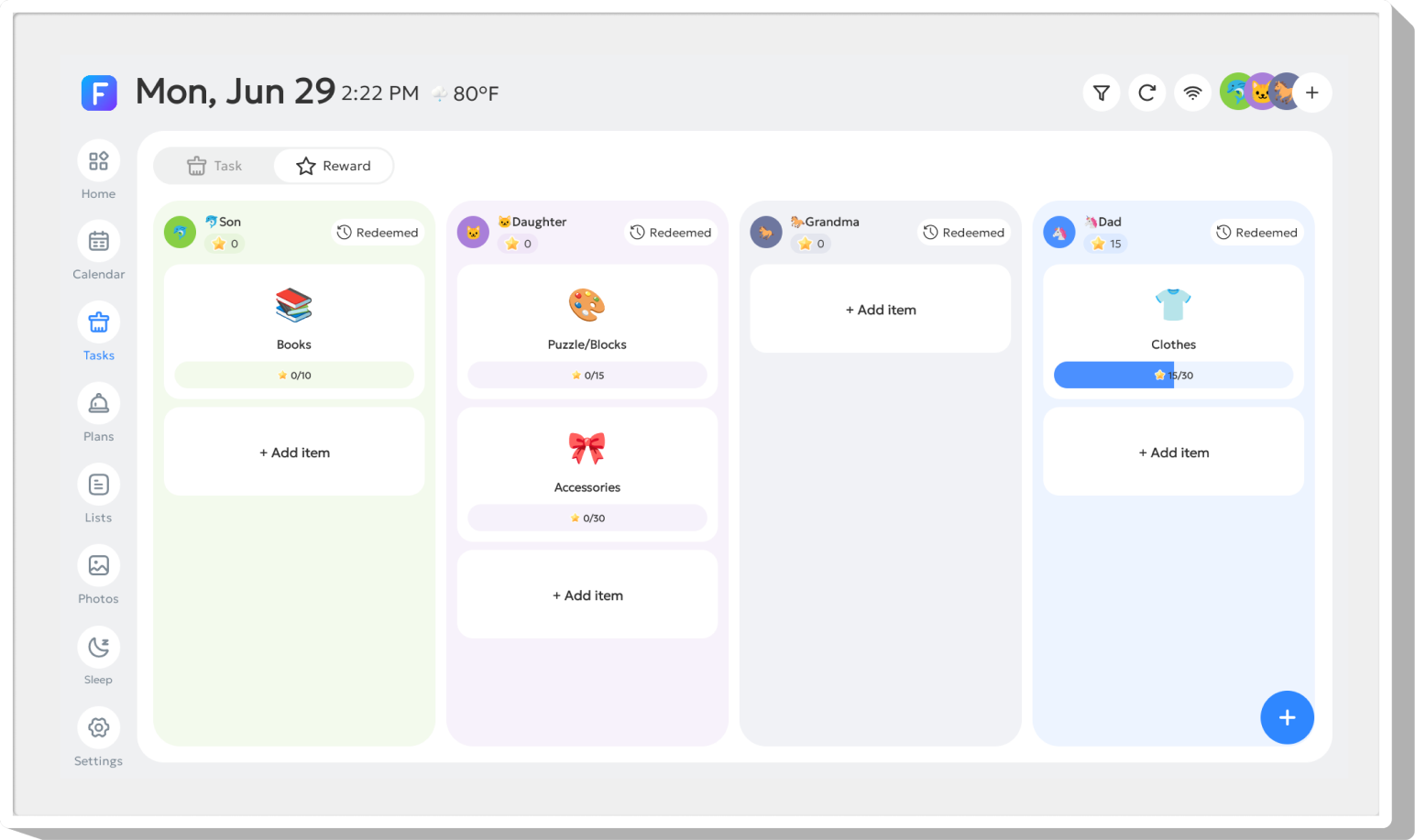
FotoCube is a good fit if you plan to use recurring tasks, points and family rewards every week without paying a recurring fee for them. Skylight’s time-of-day routine views are useful if you want to group the morning, afternoon and evening on the screen. If your family needs a broader PIN policy covering selected apps, review Cozyla’s menu on the exact model you’re considering.
Bring two questions to checkout: “What can my child do with the lock on?” and “What still works if I stop paying after the trial?” Compare the exact models and software versions sold in your region.
Sources and setup guides
Feature listings reviewed November 25, 2026. This comparison uses product and support documentation from each brand. The school morning is an illustrative setup.
- FotoCube task setup, rewards setup and Parental Lock settings.
- Skylight Tasks, Rewards and Parental Lock instructions.
- Cozyla membership by model, routines and chores and Parental Lock.
Plan your first week of chores
Try a small school-week plan with tasks, star points and a reward your family chooses.
See the one-week plan