 Help Center
Change calendar views and move between dates
Use Schedule, Day, Week or Month view to choose how much of the family calendar you see at once.
Before you start
- Open the Calendar screen on your FotoCube
- Connect the calendars you want to display, if needed
For supported Calendar and Calendar Pro displays. Menu labels and feature availability can vary by device and software version. Check the options shown on your device.
Step by step
- Tap the view selector and choose Schedule, Day, Week or Month.
- Use the date control to change the date range. The previous and next controls move between weeks or months where shown.
- Tap Today to return to the current date.
- Use the refresh control to reload the current calendar data.
Illustrated reference
Original FotoCube instructions and screenshots for this task.

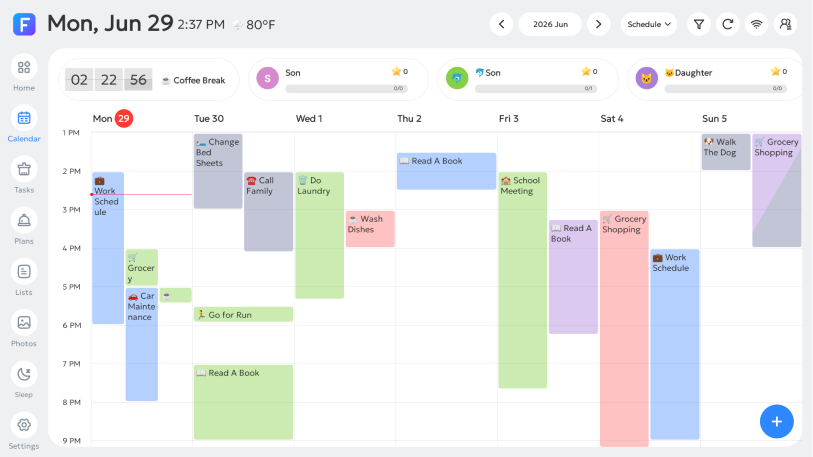
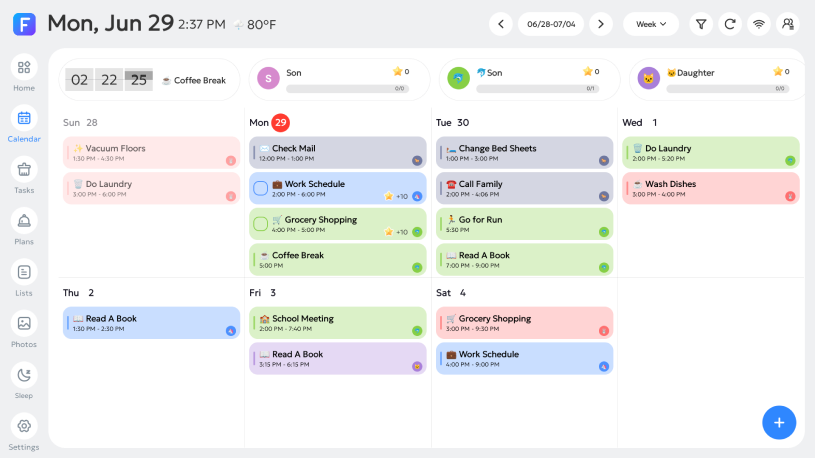
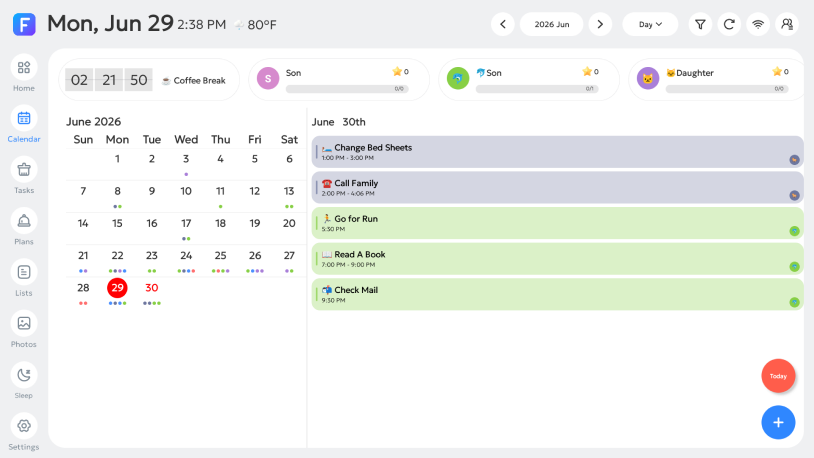
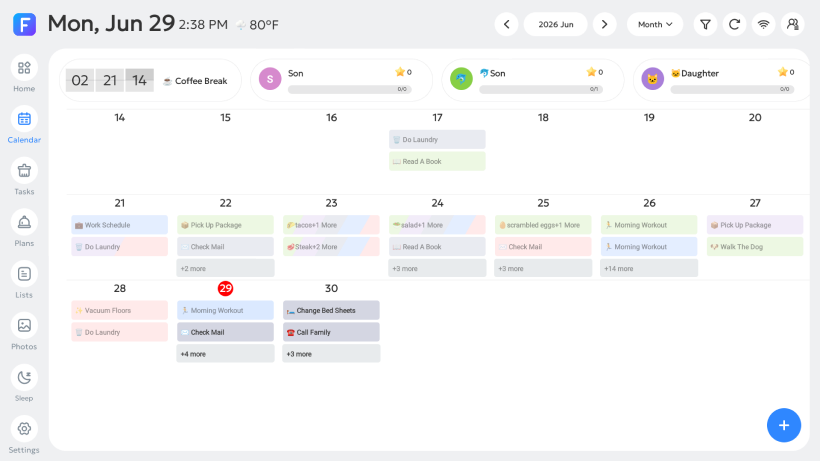
Supports Schedule, Day, Week, and Month views. Tap the dropdown menu to switch between view types.
- Schedule:
- View your events in a timeline layout.
- Day:
- Focus on your events for a single day.
- Week:
- Plan your week at a glance.
- Month:
- See your whole month in one view.
Button Instructions:
06/21-06/27Change View Date
‹Previous Week/Month
Week⌄Switch View
›Next Week/Month
TodayBack to Today
↻Refresh Current Data
Common questions
Which view should I choose?
Schedule lists events in a timeline, Day focuses on one date, Week shows the week, and Month gives a wider overview.
How do I return after browsing another week?
Tap Today to return to the current date.
Based on the existing FotoCube Help Center guide: Views. This documentation date is not a device or app release date.