 Help Center
Add meals and manage recipes on FotoCube
Choose a date and meal slot, then add an existing recipe or create a recipe of your own. These are the manual meal-planning steps; optional Zola AI tools are explained separately.
- Open Meal Plan on your FotoCube
- Choose the date and meal you want to plan
- Have a recipe name, ingredients and any cooking notes ready
For supported Calendar and Calendar Pro displays. Menu labels and feature availability can vary by device and software version. Check the options shown on your device.
Step by step
- Tap the date and meal slot: Breakfast, Lunch, Dinner or Snack.
- Choose an existing recipe, or tap Add Recipe.
- For a new recipe, enter its name, category, ingredients and any instructions or notes, then save it.
- Tap the planned dish to see its ingredients and description. Use Edit or Delete when you need to change it.
- Long-press a day's meal slot to reopen its planning window.
Illustrated reference
Original FotoCube instructions and screenshots for this task.
Create a Meal Plan
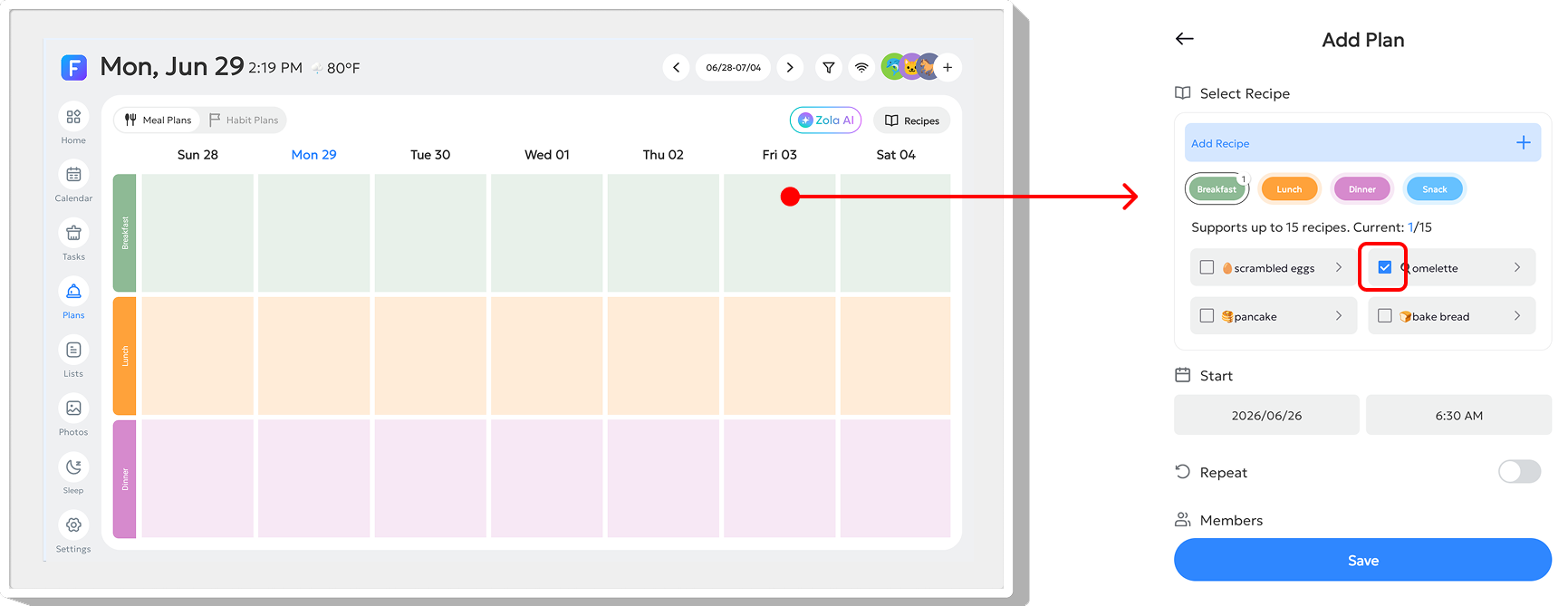
Find the date and meal slot where you want to create a plan, such as Breakfast, Lunch, Dinner, or Snack, and tap it. A Meal Plan pop-up window will appear. You can select an existing Recipe, or tap "Add Recipe" to create a new one. After creating a meal plan, long-press the slot for that day to reopen the edit window.
Add Recipe
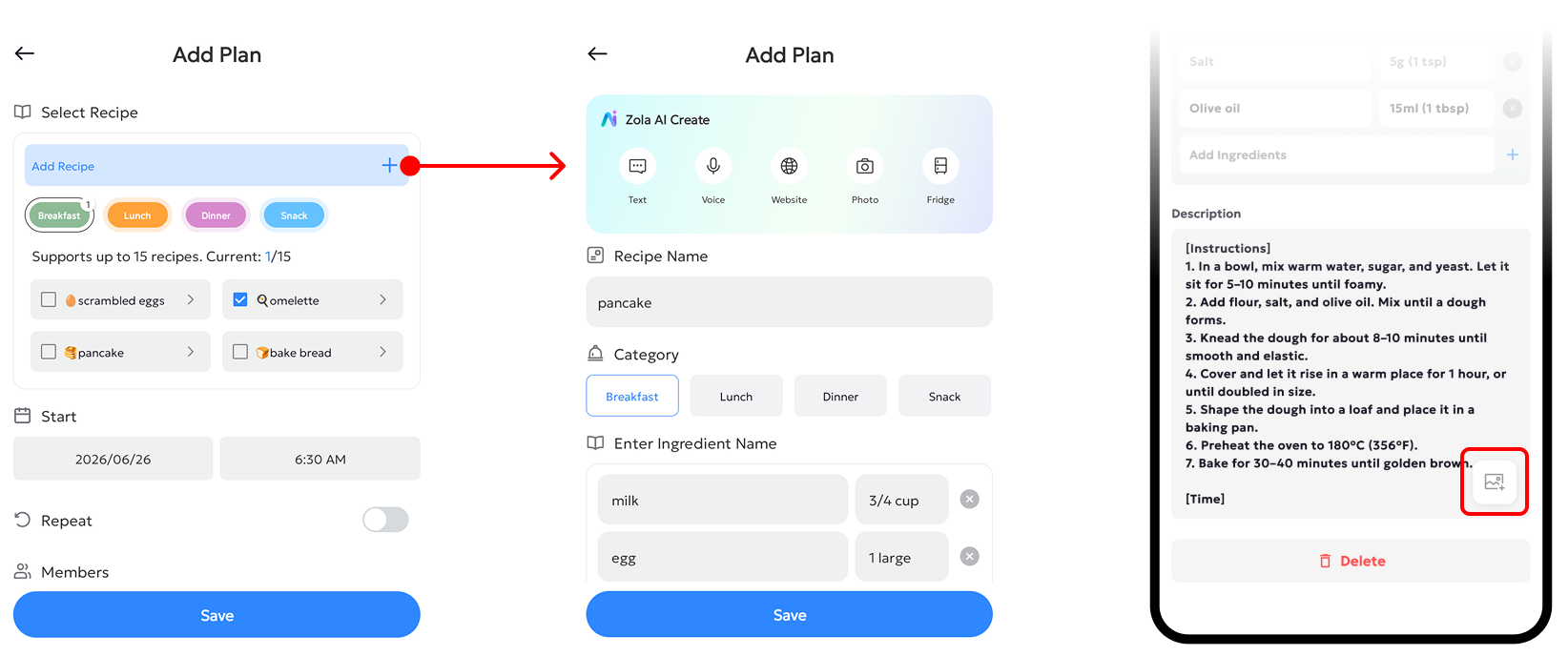
Tap Add Recipe. Input your recipe name, and choose a category: Breakfast, Lunch, Dinner or Snack. Next, add your ingredients in the Enter dish name field. You may also fill in cooking instructions or notes under Description.
Notes: You can upload a dish photo using the FotoCube mobile app.
View or Edit Recipes
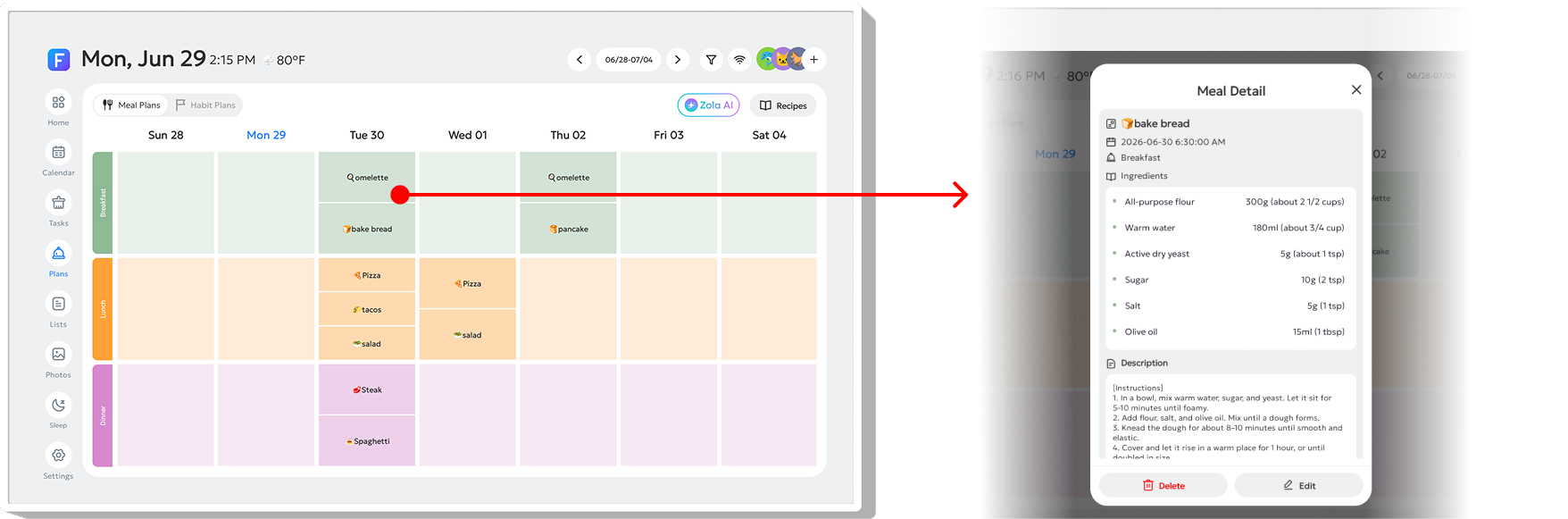
After creating a meal plan, tap the dish on that day to view its Ingredients and Description. You can also find the "Edit" and "Delete" buttons in this window.
Common questions
How do I add a photo of the dish?
The FotoCube mobile app supports uploading a dish photo.
Is this the same as generating a meal plan with AI?
No. This guide covers adding and editing meals manually. Zola AI has separate tools for meal suggestions, recipe generation and fridge scans, with availability depending on the device, software and plan.
Based on the existing FotoCube Help Center guide: Meal Plan. This documentation date is not a device or app release date.