 Help Center
Set up your FotoCube for the first time
Connect your display to the internet, choose the mode you want to use, then pair the FotoCube app to manage it from your phone.
- Your FotoCube display and its power adapter
- An internet connection and the Wi-Fi password
- An iPhone or Android phone for the FotoCube app
For supported Calendar and Calendar Pro displays. Menu labels and feature availability can vary by device and software version. Check the options shown on your device.
Step by step
- Plug the power adapter into the display and turn it on.
- Follow the on-screen setup instructions and connect to Wi-Fi.
- Choose the display mode you want to use: Photo Frame, Family Calendar or Art Gallery, where available on your device.
- Download the FotoCube app, register or sign in, and follow the pairing guide below.
Illustrated reference
Original FotoCube instructions and screenshots for this task.
Welcome to FotoCube! Follow the steps below to get your Smart Display up and running.
Plug in the power adapter to turn on the Smart Display;
Follow the guide on the screen to start setting up the Smart Display step by step;
Complete the setup and start interacting with your friends and family.

FotoCube Smart Display
The FotoCube Smart Display provides three modes: Photo Frame, Family Calendar, and Art Gallery. Choose the mode you like.
The touchscreen operation is easy to use, making photo sharing and family schedule management smoother and more convenient, providing you with a high-quality, simple, and enjoyable experience.
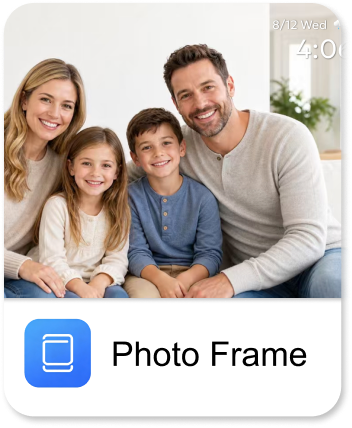
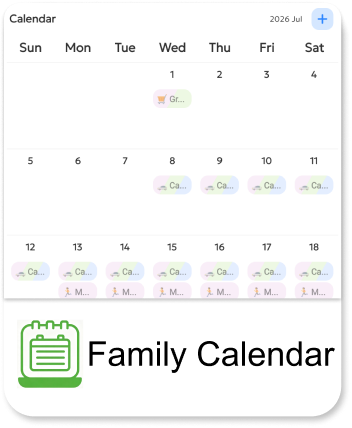
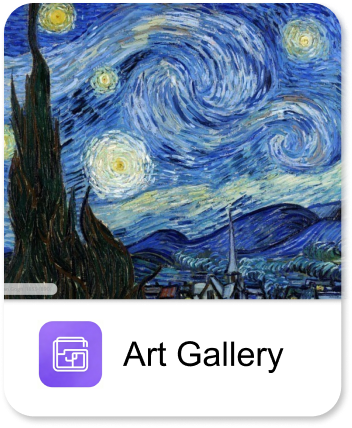

FotoCube APP
The FotoCube app offers a wide range of features on Android and iOS systems, allowing for easy sharing of connected devices anytime and anywhere. No matter where you are in the world, you can send photos, videos, or manage the family schedule online in real time, anytime.
Method 1: Scan the QR code to download the APP
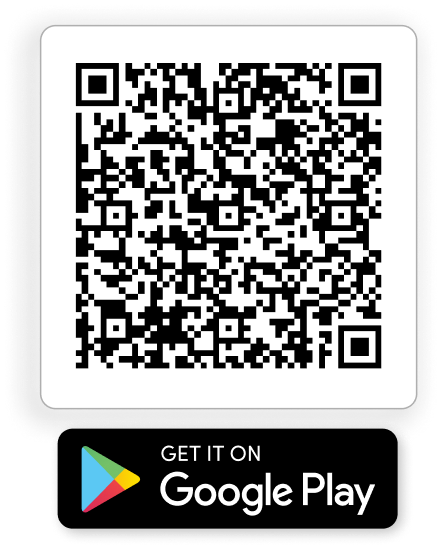
Method 2: Search for and download the FotoCube APP in the app store
- Android: Search for "FotoCube" on Google Play and then download the APP.
- iOS: Search for "FotoCube" on the App Store and then download the APP.
Tip: Keep your Smart Display connected to the internet for the best experience.
Common questions
What if Wi-Fi setup fails?
Check that the display and router support the same Wi-Fi band. Try another network or a phone hotspot, then contact support if the display still cannot connect.
Where should I continue after setup?
Pair the display with the FotoCube app, then connect your calendars or send your first photos.
Based on the existing FotoCube Help Center guide: Getting Started. This documentation date is not a device or app release date.